
Top 8 PixelLab Errors Killing Your Designs – Fix Them Fast!
When you’re just starting out with PixelLab, it’s easy to feel lost. Whether you’re using it on Android, trying workarounds for PC or iOS, or even using older versions, the learning curve can be frustrating. Many beginners jump into design without knowing the basics, which leads to common mistakes—messy layouts, poor text choices, and designs that don’t turn out the way you imagined.
The problem isn’t always your creativity, it’s not knowing how to use the tools correctly. With limited support on other platforms like iOS or PC, these small errors become even harder to fix. But the good news? Once you know what to avoid, your designs can go from average to eye-catching in no time.
Top 8 PixelLab Errors Beginners Make & How to Fix Them
PixelLab rocks for crafting Instagram thumbnails, logos, and 3D text. Content creators, small shops, and hobbyists love it. But mistakes mess up designs fast. In Pakistan, India, and Bangladesh, Android users swear by PixelLab’s mod APK for free premium tools. Think Bangla font posters or YouTube graphics. Yet, errors ruin the vibe.
This guide fixes top PixelLab blunders. Beginners and pros can nail clean, pro designs. I’m a graphic design geek who’s tested PixelLab hands-on.
1. Poor Alignment and Layout Missteps
Randomly placing text, stickers, or shapes makes designs look messy. It screams amateur. Misalignment annoys viewers. It kills professionalism for Instagram posts or business logos. PixelLab’s tools can save you.
Fixes:
- Turn on PixelLab’s grid and snap options. They lock elements in place.
- Drag guides to align text or shapes symmetrically. No guesswork.
- Use the rule of thirds. Place key elements off-center for eye-catching layouts.
Pro Tip: Preview designs on mobile and desktop. Alignment must hold everywhere.

2. Inconsistent or Poor Font Choices
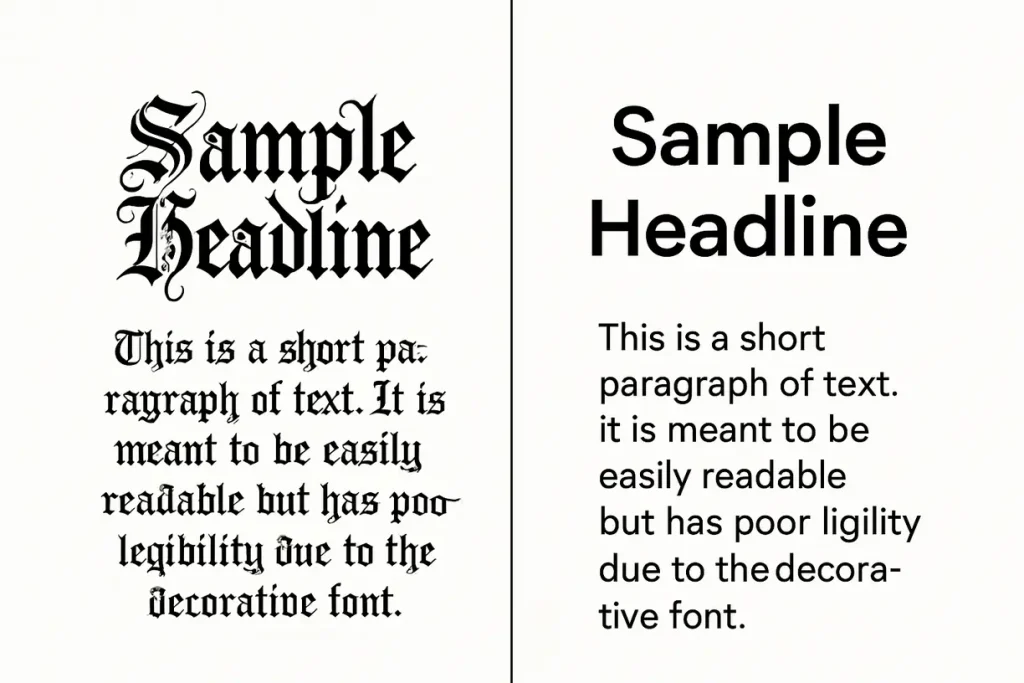
Using too many fonts or flashy Bangla styles kills readability. Mismatched typefaces look sloppy. Cluttered typography confuses viewers. It hurts brand vibes for logos or Instagram posts. PixelLab Mod APK users face font import glitches, like on Pixel 7A.
Fixes:
- Stick to 2–3 fonts. Pair bold sans-serif with clean serif.
- Use bold or italic for emphasis. Skip extra typefaces.
- Grab high-quality fonts from Google Fonts. They’re safe for mod APKs.
Pro Tip: Check font clarity at small sizes. Thumbnails and stories demand it.
3. Cluttered Designs Due to Poor Spacing
Cramming text, images, or stickers without padding creates messy layouts. No breathing space overwhelms viewers. It tanks engagement on Instagram or Twitter. Poor spacing ruins business cards and flyers for small shops.
Fixes:
- Adjust layers in PixelLab for even spacing.
- Add padding around elements and margins between them.
- Check designs in full-screen mode to spot overcrowding.
Pro Tip: Keep it minimalist for pro-level business cards or flyers.
4. Overusing Effects and Filters
Piling on shadows, strokes, or 3D effects makes designs look cheap. Overdone gradients or textures scream tacky. It distracts from logos or thumbnails. Content creators lose focus on Instagram or YouTube.
Fixes:
- Add effects lightly. Subtle shadows pop 3D text.
- Use one or two effects max. Keep it cohesive.
- Lower opacity to soften gradients or textures.
Pro Tip: Export as PNG. Check effects in high resolution.
5. Failing to Save Projects Properly
Trusting auto-save or exporting PNGs without .plp files risks losing designs. It’s a nightmare. Complex multilayered graphics, like PSD-style logos, take hours. Losing them wastes time for creators and small businesses.
Fixes:
- Save projects as .plp files after big edits. Do it manually.
- Back up .plp files to Google Drive or SD cards.
- Export PNG or PDF only after saving the editable .plp.
Pro Tip: Name files clearly, like “Project 1” to find them fast.
6. Ignoring Background Removal Errors
Sloppy background removal leaves jagged edges or stray pixels. It ruins stickers or logos. Amateurish transparent PNGs look unprofessional. Content creators and small businesses lose credibility on Instagram.
Fixes:
- Pick PixelLab’s eraser tool. Use color picker for precision.
- Zoom in tight. Clean edges by hand.
- Test transparency. Layer over bright or dark backgrounds.
Pro Tip: Save as PNG. JPEGs mess up transparency.
7. Misusing Layers and Layer Management
Messy, overlapping layers cause accidental edits. Unnamed layers confuse you. It slows complex PSD-style designs like logos. Disorganized layers frustrate mod APK users chasing pro results.
Fixes:
- Name layers clearly. Try “Text_Headline” or “Sticker_Star.”
- Lock finished layers. No oops moments.
- Group related layers. Adjust them fast.
Pro Tip: Reorder layers in PixelLab’s panel. Place shadows behind text for depth.
8. Incompatible File Formats and Export Issues
Exporting as low-res JPEG or ignoring PPI blurs designs. Flyer prints or Instagram posts look fuzzy. It kills quality for small businesses and creators.
Fixes:
- Export PNG for digital. Use PDF for prints.
- Set 300 PPI for A4 prints (2480 x 3508 pixels).
- Check export settings. Skip compression artifacts.
Pro Tip: Set custom sizes with PixelLab’s “Image Size” tool before export.

Final Thoughts
PixelLab unlocks killer designs for logos, thumbnails, and social media graphics. But rookie mistakes can tank your work. Fix alignment, fonts, spacing, and effects to shine. Save smart, nail background removal, and master layers. Export right for crisp results. Whether you’re in Pakistan or in India crafting Bangla posters or making Instagram stories, these tips boost your game. Grab PixelLab Mod APK’s free tools and create like a pro. Start designing now—your next viral post awaits!
FAQs
What makes my text look out of place in PixelLab?
Your text might look off because it isn’t lined up properly. Use PixelLab’s align tools to snap your text to the center, left, or right. Make sure your text boxes are the same size and use guides for help.
What’s the smartest way to handle multiple layers in PixelLab?
Keep your layers organized by naming them clearly and grouping similar ones. Use the layers panel to hide or show layers while you work, and only merge layers when you’re done editing.
How do I design simple, clean layouts in PixelLab?
Use a few colors and fonts, leave enough space around your objects, and don’t clutter too much. Keep it simple so your design looks neat and easy to read.
Is it possible to boost the quality of a blurry export from PixelLab?
The best way is to export your image in a bigger size or a better format like PNG. If it’s already small or blurry, fixing it is hard, but some photo apps can sharpen it a bit.
Does PixelLab offer beginner-friendly design templates?
Yes, PixelLab has easy-to-use templates for beginners. You can find them inside the app or online to help you get started quickly with ready-made designs.


